> For the complete documentation index, see [llms.txt](https://help.donary.com/llms.txt). Markdown versions of documentation pages are available by appending `.md` to page URLs; this page is available as [Markdown](https://help.donary.com/cloud-drm/getting-started/setup-and-configuration/api-keys.md).
# API Keys
## Overview
**You can access the API Keys tab via the Admin category in the left sidebar.**
The DRM system does not process payments directly. Instead, it facilitates integration with a selected third-party payment processor using an API key generated within that processor's system. The DRM sends the donation details (payment details) along with the designated API key to the processing account. The processor then handles the payment, withdrawing the funds from the donor's account and depositing them into the organization's account.
***
## Default Key Features
### **Add API Keys**
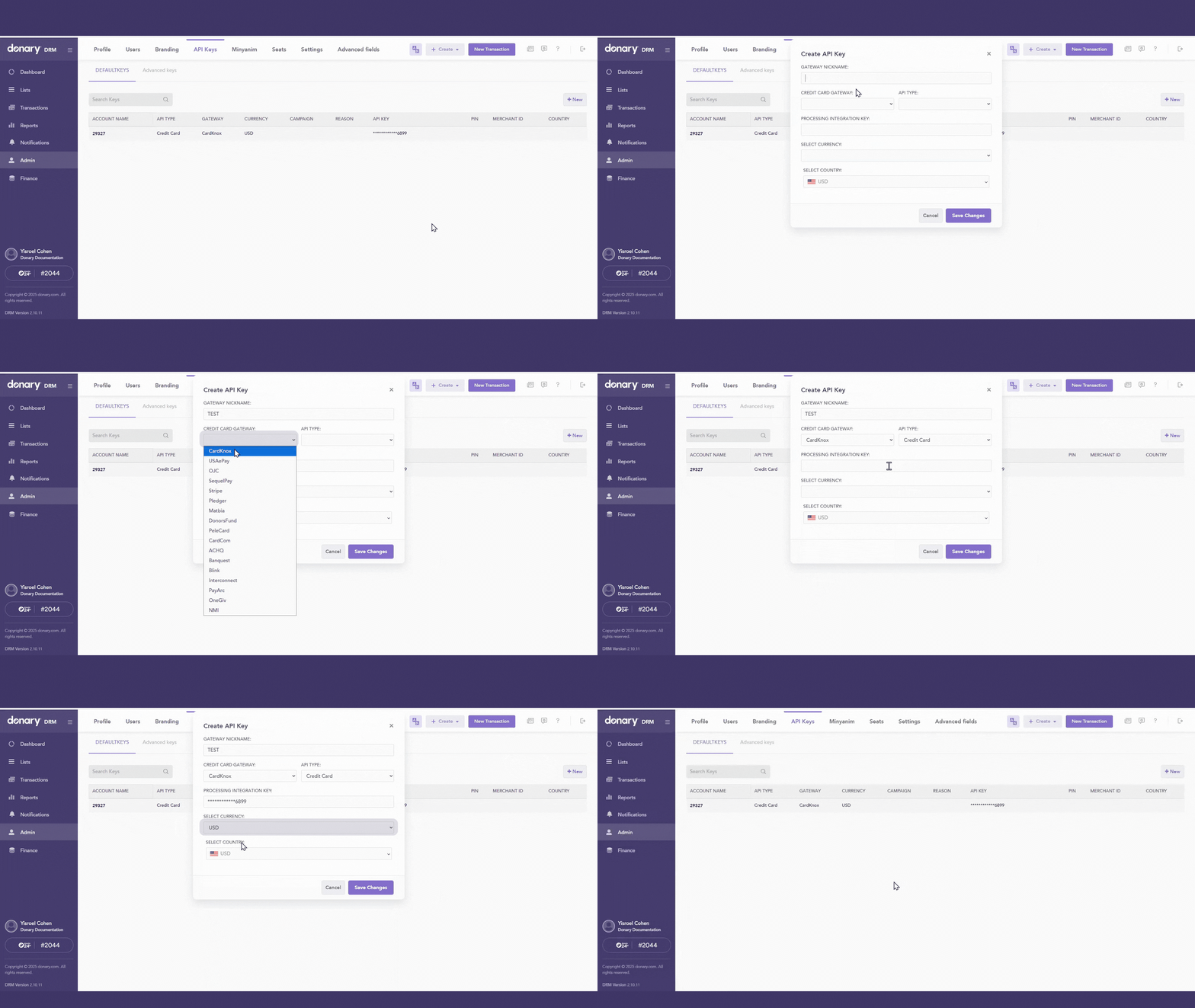
To add a new API key as a default gateway to the system, follow these steps:
* Click the “**+New**” button, located on the top right.
* In the “**Gateway nickname**” field, enter a name for the gateway.
* From the “**Credit card gateway**” dropdown, select the name of the processing company.
* Choose the transaction type from the “**API type**” dropdown.
* Paste the API key you copied from the processing company into the **“Processing Integration Key”** field.
***Important:** Make sure the API key is entered correctly - any inaccuracies may cause the transaction to fail.*
* Select the desired currency and country using the respective dropdown fields.
* **Save your changes** to finalize the addition of the default API key.
* Run a **TEST charge** after creating your API key to ensure it was set up correctly.
Add API key - Click on image to enlarge
{% hint style="info" %}
For more information on the available options and instructions for setting up each gateway, see [Setting up API Keys.](/cloud-drm/getting-started/setup-and-configuration/api-keys/setting-up-api-keys.md)
{% endhint %}
***
### **Remove API Keys**
API keys can be **deleted** immediately using two methods:
* Click the delete icon on the far right of the specific API key you wish to remove.
* Click the edit icon on the far right of the desired API key, and then select "remove" in the bottom left corner of the subsequent window.
Remove API key - Click on image to enlarge
***
### **Edit API Keys**
To modify an existing API key:
* Click the **Edit** icon on the far right of the desired API key.
* Adjust the fields you wish to change.
* Click "**Save Changes**"
* Run a **TEST charge** after editing your API key to ensure it was set up correctly.
Edit API key - Click on image to enlarge
***
## Advanced Key Features
The DRM platform allows you to add an API key for use with a **specific** [**campaign**](#user-content-fn-1)[^1].
Your organization can assign a dedicated API key to each campaign. This ensures that all funds for that campaign are processed through a **designated processing account**.
All functionality is the same as with the default API keys. You can add, edit, and delete advanced keys by following the same instructions outlined in the [Default Key section](#default-key-features). The only difference is that with advanced keys, you are assigning a specific campaign to each API key.
For example, you might create a campaign named **“Shabbos Meron”.**\
Donations made under this campaign would be associated with that specific cause and processed using its designated API key.
[^1]: The cause and purpose of the donation. Every donation is directed towards a specific cause AKA campaign.
---
# Agent Instructions
This documentation is published with GitBook. GitBook is the documentation platform designed so that both humans and AI agents can read, navigate, and reason over technical content effectively. Learn more at gitbook.com.
## Querying This Documentation
If you need additional information that is not directly available in this page, you can query the documentation dynamically by asking a question.
Perform an HTTP GET request on the current page URL with the `ask` query parameter, and the optional `goal` query parameter:
```
GET https://help.donary.com/cloud-drm/getting-started/setup-and-configuration/api-keys.md?ask=&goal=
```
`ask` is the immediate question: it should be specific, self-contained, and written in natural language.
`goal` is optional and describes the broader end goal you are ultimately trying to accomplish on behalf of the user. GitBook uses it to tailor the answer towards what is most useful for that goal.
The response will contain a direct answer to the question and relevant excerpts and sources from the documentation.
Use this mechanism when the answer is not explicitly present in the current page, you need clarification or additional context, or you want to retrieve related documentation sections.