> For the complete documentation index, see [llms.txt](https://help.donary.com/llms.txt). Markdown versions of documentation pages are available by appending `.md` to page URLs; this page is available as [Markdown](https://help.donary.com/overview/lists/donors/donor-card/wallet.md).
# Wallet
## Overview
The Virtual **Wallet** is located in the **Information** **tabs** within the **Donor Card**.
The Virtual **Wallet** securely stores a donor’s preferred payment methods, making future donations faster and easier.
For donors, this removes friction from the giving process. Instead of repeatedly providing card details, the organization can create the payment using a saved payment method already on file. If multiple payment methods exist, the organization can confirm with the donor which card to use (for example, “the card on file ending in 0236”) and complete the transaction in seconds.
By reducing effort at the moment of donation, the Virtual Wallet makes it easier for donors to say “yes” again—while enabling organizations to process donations more quickly and efficiently.
{% hint style="warning" %}
**Note:** You can save or use a wallet on file exclusively through the DRM and Mobile device. This feature is currently unavailable on other Donary devices or platforms.
{% endhint %}
## Managing a Donors Wallet
### **Adding Payment Methods**
Payment methods can be added to the virtual wallet in two ways:
1. **Import - Tokens** or **Credit card numbers** can be added by a **bulk import**. See [Import Tokens](/overview/lists/donors/add-a-donor/import-a-token.md).
2. **Manually** within the donor card:
* In the **Wallet tab,** click **Add Method**.
* Choose the payment type:
* **Credit Card**\
Enter the card information along with the billing address.
* **ACH**\
If your Donary account is set up to accept [ACH ](/cloud-drm/getting-started/setup-and-configuration/api-keys/achq-processing.md)payments, enter all the relevant information here.
* **Token**\
If you have a [token ](#user-content-fn-1)[^1]from a processing account, you can enter it here.
* Choose if you'd like the method to be your **default payment** method.
* **Save** your payment method.
* A donor can have **multiple** payment methods saved to his virtual wallet.
{% hint style="success" %}
* **When creating a schedule:** The card used will automatically be saved to the donor’s wallet.
* **When a payment is declined:** The system will automatically save the card to the wallet, allowing the organization to retry the payment.
{% endhint %}
### **Default Payment Method**
* The first payment method added is automatically set as the **default payment method**.
* You can **change** the default at any time by selecting a different payment method in the wallet and marking it as default.
* The default payment method is used for **bulk transactions**, where multiple donors are selected for a transaction. When performing a bulk transaction, the system **automatically uses each donor’s default payment method**.
### **Removing Payment Methods**
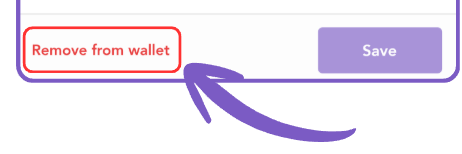
* Payment methods can be removed from the virtual wallet by selecting the method and clicking on **Remove from Wallet**.
* A payment method **cannot be removed** **while it is linked to an active schedule.**\
To remove it, first update the schedule to use a new wallet.
[^1]: A token is a value provided by the processing company. It represents the credit card that the donor has saved with the processor.
---
# Agent Instructions
This documentation is published with GitBook. GitBook is the documentation platform designed so that both humans and AI agents can read, navigate, and reason over technical content effectively. Learn more at gitbook.com.
## Querying This Documentation
If you need additional information that is not directly available in this page, you can query the documentation by asking a question.
Perform an HTTP GET request on the following URL with the `ask` and `goal` query parameters:
```
GET https://help.donary.com/overview/lists/donors/donor-card/wallet.md?ask=&goal=
```
`ask` is the immediate question: it should be specific, self-contained, and written in natural language.
`goal` is what the user is ultimately trying to achieve, the reason they need the answer. Sharing it helps GitBook give you a better, more relevant answer. A goal is most helpful when it describes the outcome the user wants rather than restating the question. For example, with `ask=how do I create an API token`, a goal like `automate deployments from our CI pipeline` lets GitBook tailor the answer to that use case.
The response will contain a direct answer to the question and relevant excerpts and sources from the documentation.
Use this mechanism when the answer is not explicitly present in the current page, you need clarification or additional context, or you want to retrieve related documentation sections.