> For the complete documentation index, see [llms.txt](https://help.donary.com/llms.txt). Markdown versions of documentation pages are available by appending `.md` to page URLs; this page is available as [Markdown](https://help.donary.com/cloud-drm/getting-started/setup-and-configuration/users.md).
# Users
## Overview
**You can access the Users tab via the Admin category in the left sidebar.**
Manage all platform users, their roles, and access levels here. This enables effective account management by ensuring each user has the appropriate, customized permissions. Adjust access as needed to maintain security and operational efficiency, restricting sensitive information to only those who require it.
***
## User Features
### Add User
Only the Donary admin can create new user accounts in the DRM. Organizations cannot add users. However, organizations are authorized to modify an existing user's permissions and credentials. For details on access levels, refer to the User’s permissions section below.
To add a user, please reach out to your Donary representative today.
***
### Remove User
• Select the desired users’ email/username.
• The “Edit user” window will appear.
• Select “Remove user” in the bottom left hand corner.
Remove a user - Click on image to enlarge
{% hint style="danger" %}
**NOTE**! This action cannot be reversed.
{% endhint %}
***
### Edit User
• Select the email/username to access editing options
• The “Edit user” window will appear.
• Update desired details in the “User info” tab
• Save changes
Edit a User - Click on image to enlarge
***
### User's Permissions
In this part, you will have the opportunity to define the specific permissions and access levels assigned to each user.
To modify user credentials, click on the user's email address or username. The “Edit user” window will appear.
**Viewable lists**
• Select the “Lists” tab. Here you can choose which lists the user will be able to view and which the user will not be able to view.
• Toggle to enable/disable the view for each list.
• Save changes
**Permitted actions**
• Select the “Add New” tab. Here you can choose which "Create" actions the user will be able to execute and which not.
• Toggle to permit/block a specific action.
• Save changes
**Viewable sections**
• Select the “Other” tab to define the different views that the user can/cannot view.
• Toggle each view to provide or block access to said view.
• Save changes
**Viewable data**
• Select the “Selected Data” tab to be able to define which data the user will have access to.
• Click on the dropdown of each category and choose which databases the user will be able to access.
• Choose all desired data from each dropdown.
• Save changes
{% hint style="warning" %}
A user may see a campaign they do not have permission to access only when a donor makes **two separate pledges - each to a different campaign** - and both pledges are paid together in a **single payment**. In this case, the payment is associated with both pledges.
If the user has access to Campaign A, they will see the full payment transaction, including the portion allocated to Campaign B, since both pledges are tied to the same payment.
**Note:** The total amounts shown in the "Sum By: Campaign" cards above the transaction list will reflect only the campaigns included in the user’s permissions.
{% endhint %}
***
### User View adjustment
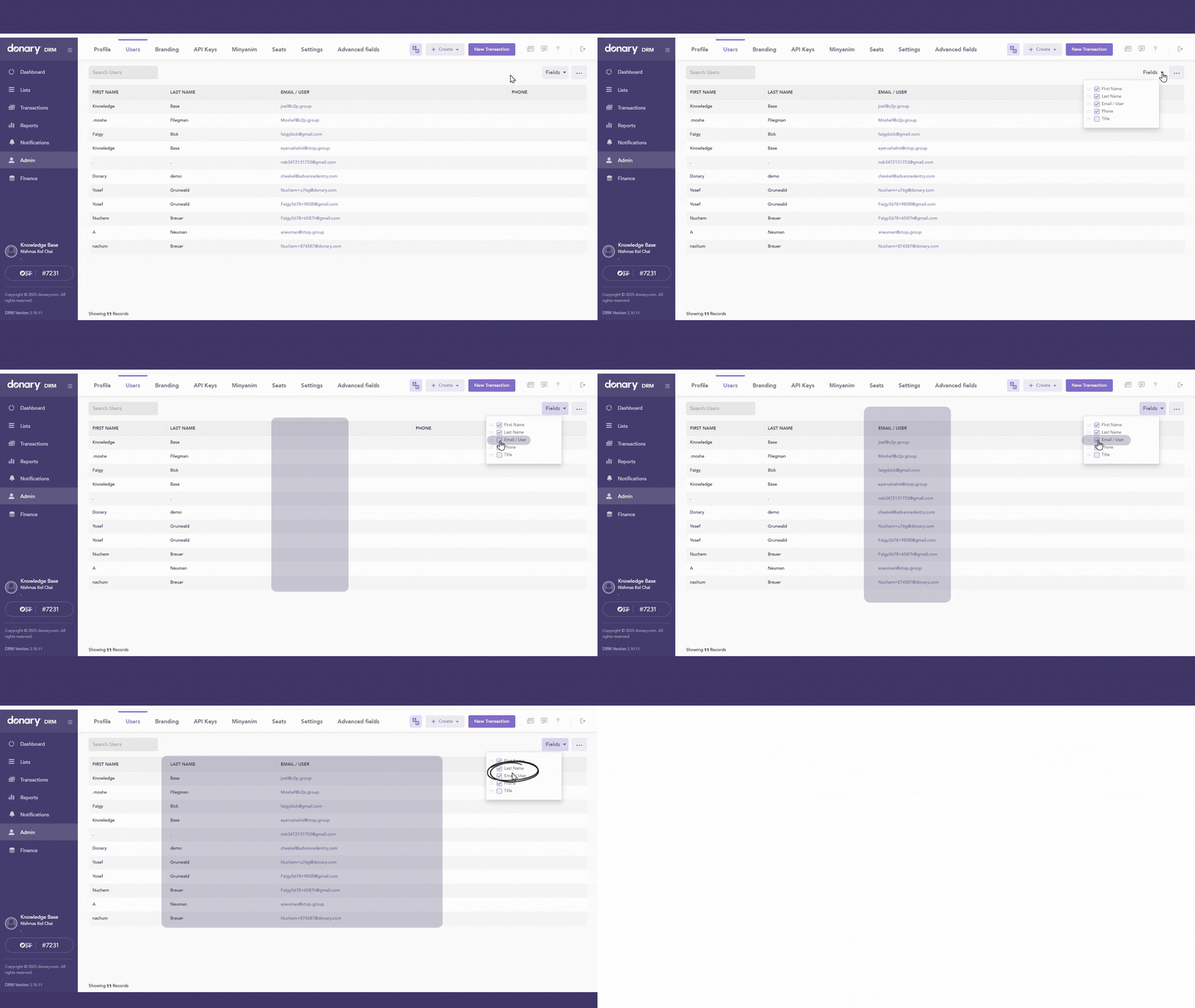
**Show/Hide columns**
• Select the Fields button, then check or uncheck the boxes next to each column name to display or conceal that column.
**Change Order**
• Drag and drop the names of the columns to rearrange the displayed column order.
Show/hide columns or change column order - Click on image to enlarge
***
### Export users
• Click on the 3 dots in the top righthand corner to export lists of users. 
• Exported users will be downloaded as an excel spreadsheet to your downloads folder.
---
# Agent Instructions
This documentation is published with GitBook. GitBook is the documentation platform designed so that both humans and AI agents can read, navigate, and reason over technical content effectively. Learn more at gitbook.com.
## Querying This Documentation
If you need additional information that is not directly available in this page, you can query the documentation dynamically by asking a question.
Perform an HTTP GET request on the current page URL with the `ask` query parameter, and the optional `goal` query parameter:
```
GET https://help.donary.com/cloud-drm/getting-started/setup-and-configuration/users.md?ask=&goal=
```
`ask` is the immediate question: it should be specific, self-contained, and written in natural language.
`goal` is optional and describes the broader end goal you are ultimately trying to accomplish on behalf of the user. GitBook uses it to tailor the answer towards what is most useful for that goal.
The response will contain a direct answer to the question and relevant excerpts and sources from the documentation.
Use this mechanism when the answer is not explicitly present in the current page, you need clarification or additional context, or you want to retrieve related documentation sections.